
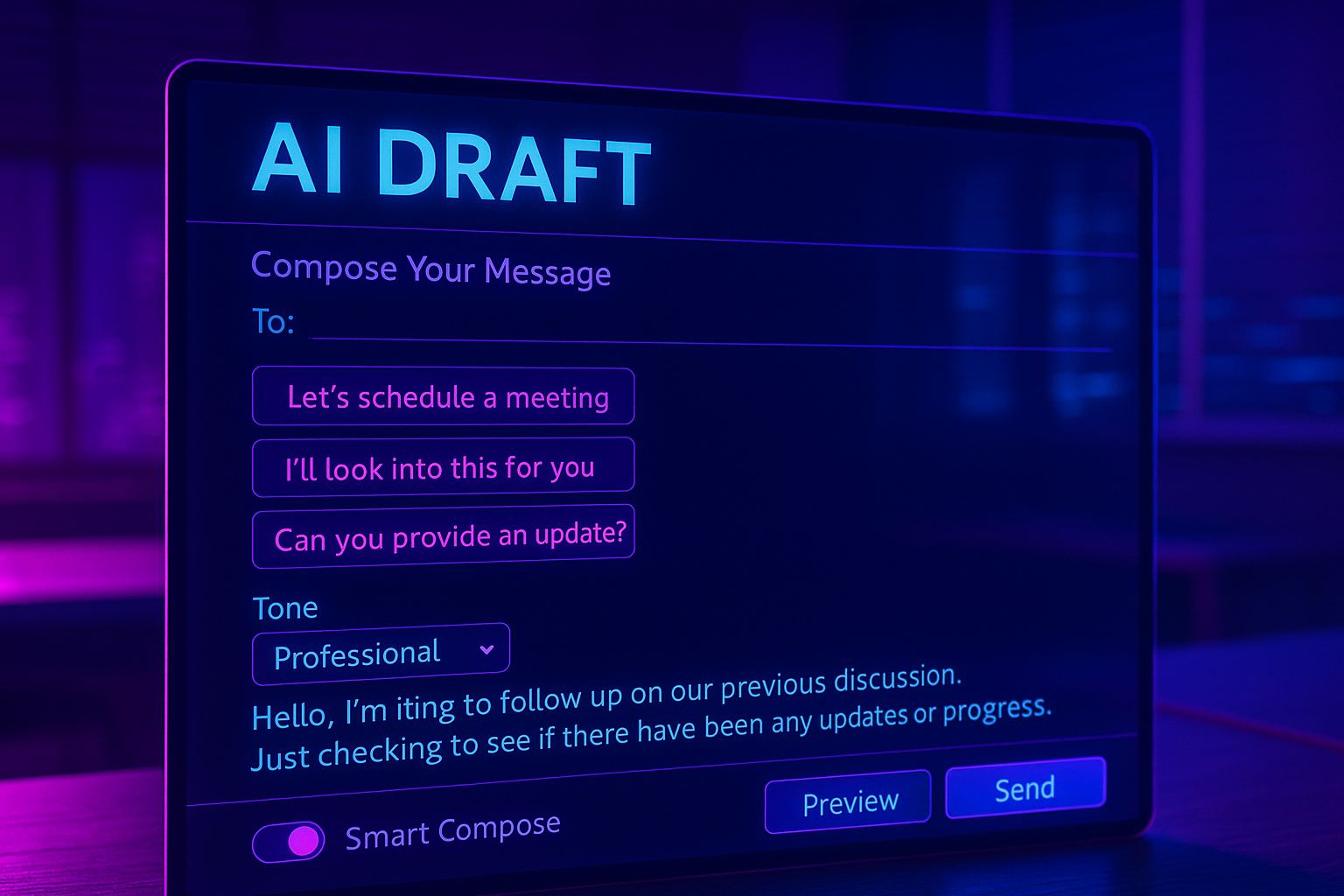
If your inbox is a daily time sink, AI email drafting can give you hours back while improving the quality of your replies. In this guide you will learn what AI email drafting is, why it is becoming essential, and exactly how to integrate Alias AI into your workflow to automate replies without losing your personal voice. Along the way we will cover best practices for AI to write email responses, when to use an AI email rewrite, and real examples you can copy.
What is AI Email Drafting
AI email drafting uses language models to generate reply suggestions from the context of an email thread. The AI analyzes sender intent, sentiment, and key details, then proposes a clear response you can send as is or personalize in seconds. Modern tools also summarize long threads and propose action items, which reduces back-and-forth and keeps communication moving.
Why it is becoming a must have
- Inboxes are larger and faster than ever, which makes response time a differentiator
- Buyers and clients expect quick, accurate replies with clear next steps
- Teams want consistency of voice and policy without heavy manual review
- AI can structure replies and remove filler so every message is easy to read
Benefits of Using AI To Write Email Replies
- Speed and focus
Draft concise, context aware replies in seconds, then spend your attention on decisions, not typing. - Higher quality communication
The AI can structure your reply, tighten language, and suggest a confident but friendly tone. - Consistency at scale
Ensure language, disclaimers, and signatures follow brand guidelines across your team. - Fewer mistakes
Built in proofreading catches grammar and clarity issues before you hit send. - Better follow through
Convert threads into tasks and reminders so nothing slips.
How Alias AI Stands Out For Email Automation
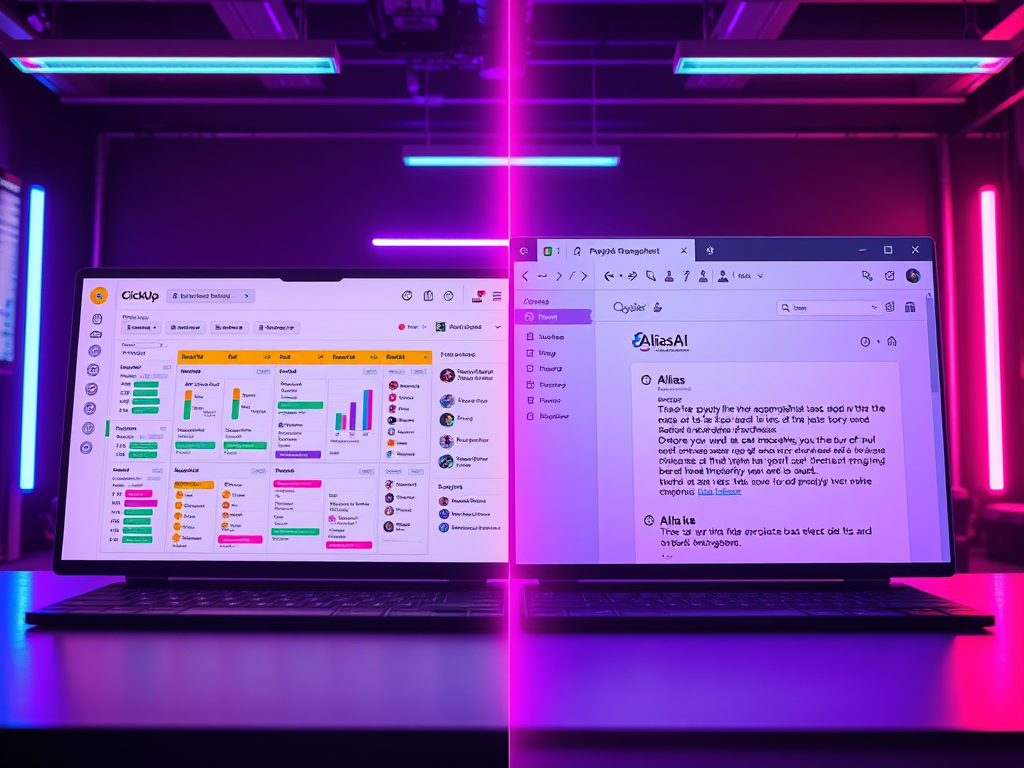
While many tools claim AI email drafting, Alias AI focuses on turning emails into action and closing loops.
- Automatic Tone Matching
Alias AI learns your natural writing style from your previous emails and mirrors it automatically. No manual tone setting or sliders. Your replies sound like you by default. - Focused on the latest context
Alias AI emphasizes the most recent one to two emails in a thread so the draft answers the current question rather than older points. - AI Email Rewrite
Paste any rough draft and let Alias AI rewrite for clarity, brevity, and stronger calls to action. - Follow Up Intelligence
One click reminders, aging indicators, and suggested next steps help you respond on time and keep momentum. - Productivity Hub
Threads become to dos with owners, due dates, and quick actions, which turns your inbox into a manageable workboard.
Real World Examples Of AI Email Rewriting
Use these patterns when you need speed without sacrificing professionalism.
1. Sales reply to a pricing question
- Input: “What are your monthly plans and do you offer an annual discount”
- AI email rewrite output:
“Thanks for reaching out about pricing. Our Standard plan is 50 per user per month and the Pro plan is 100 per user per month. Annual billing reduces each by about 15 percent. If you share team size and timeline, I can suggest the best fit and set up a quick demo.”
2. Support clarification
- Input: Long user message with three issues
- AI email drafting output:
“Thanks for the detailed note. I reviewed your account and see three items. One, your login token expired and I have reset it. Two, billing shows a failed payment on October 28 and you can update your card at this link. Three, your automation ran with an outdated filter and I updated the filter and re-ran the job. Please let me know if anything still looks off.”
3. Executive scheduling
- Input: “Can you meet next week to finalize scope”
- AI to write email output:
“Happy to connect next week. I am available Tuesday 2 to 4 and Thursday 10 to 1 HST. If either window works, I will send a calendar invite with a short agenda.”
Each example keeps the response short, confirms key facts, and proposes a clear next step.
Step By Step: Integrate Alias AI Into Your Email Workflow
- Connect your inbox
Sign in at usealias.ai, grant the required email permissions, and complete the onboarding checklist. - Let Tone Matching learn your voice
Alias AI automatically adapts to your writing style from prior emails. You do not need to configure a tone. If you prefer a different style for a message, make a light edit and Alias will mirror it. - Triage with Task Cards
Open your inbox in Alias AI. Each new thread becomes a task card with summary, urgency, and suggested next step. Pin the top five and snooze the rest. - Use AI Draft on live threads
Open a message and click Draft. Review the suggested reply, tweak a line or two, then send or copy back to your native client. - Apply AI Email Rewrite to your rough drafts
When you have a messy paragraph, paste it into Rewrite. Choose concise or persuasive guidance in your prompt if needed, then insert the improved text. - Turn follow ups into scheduled reminders
If a contact owes you something, create a follow up with a date. Alias AI will surface it when it is due. - Review analytics and iterate
Track response times, draft accept rates, and follow up completion. Save high performing drafts as templates you can reuse and refine.
Tips To Keep Replies Personalized And Professional
- Lead with one sentence of human context
Reference a recent meeting, goal, or detail from the sender to show you read the message. - Confirm facts in bullets
Summarize what you understand, then ask one clear question if needed. - Use templates as a starting point
Save your best replies as templates, then let AI adapt them to the recipient and situation. - Keep subject lines literal and useful
“Next steps on SOW v2” beats clever phrasing. - Create simple style notes for your team
Define sentence length, formality, and sign off conventions. Alias AI will learn and mirror your voice automatically. - Review sensitive messages
For legal, pricing changes, or escalations, keep human oversight in the loop.
Keywords And How To Use Them Naturally
To rank for your target phrases, integrate them in headers and body copy where they make sense.
- Primary: AI email drafting
- Supporting: AI to write email, AI email rewrite
Examples you can reuse:
- “Teams use AI email drafting to cut response time in half.”
- “When you need AI to write email replies that still sound like you, let Tone Matching handle the voice.”
- “Use AI email rewrite to turn rough notes into concise updates.”
Frequently Asked Questions
Will AI make my emails sound robotic
Alias AI uses automatic Tone Matching that mirrors your past writing, so replies sound like you.
Can I trust AI with client details
Alias AI focuses on the most recent part of the thread to avoid stale or irrelevant context. For highly sensitive content, review drafts before sending.
Is this only for sales teams
No. Founders, account managers, support teams, and operations leaders all benefit from faster, clearer replies and automated follow ups.
Ready To Try Alias AI
Start your free 7 day trial and experience AI email drafting that saves time, protects your voice, and keeps follow ups on track.

Leave a Reply